Docs menu
Connect Carson to Claude on the web
Screenshots taken 2026-10-01 with claude.ai on the web. Menus may have moved since.
Before you start
Custom connectors work on every Claude plan. Free plans are limited to one custom connector.
On Team and Enterprise plans, an organization Owner adds Carson once, under Organization settings, then Connectors. Members then connect it for themselves from their own Connectors list, starting at the sign-in step below.
The Claude desktop app shares the same connector list, so once you add Carson at claude.ai it also appears in the desktop app.
Steps
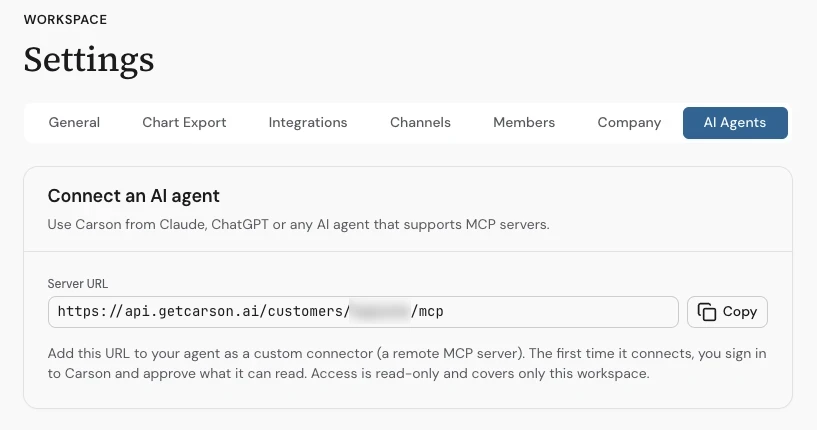
In Carson, open Settings, choose the AI Agents tab, and select Copy next to Server URL.
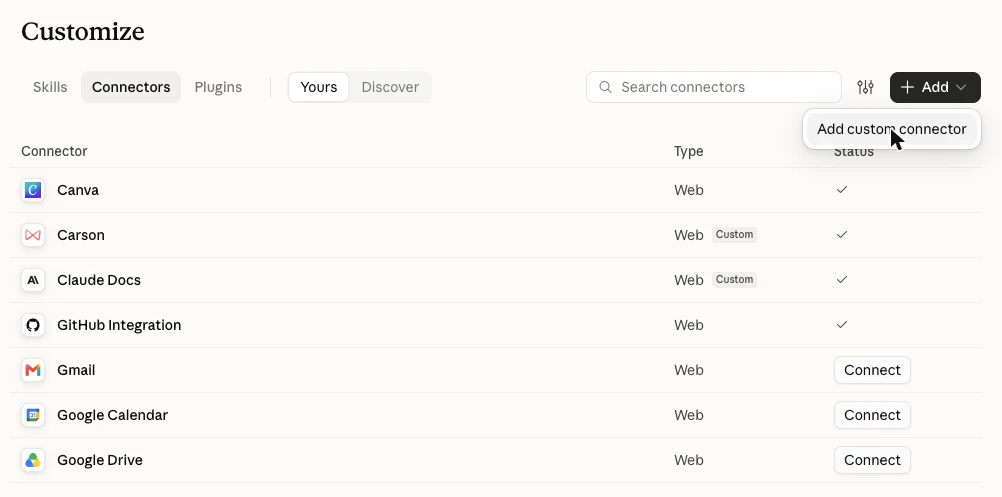
At claude.ai, open Customize, then Connectors, select + Add and choose Add custom connector.
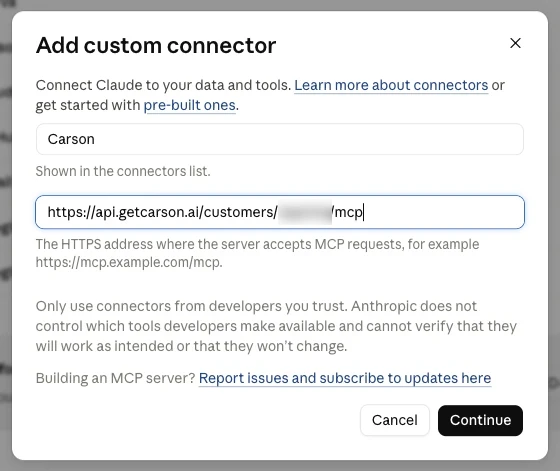
Name it Carson, paste your server URL and select Continue. On the next screen, keep the sign-in settings Claude detects.
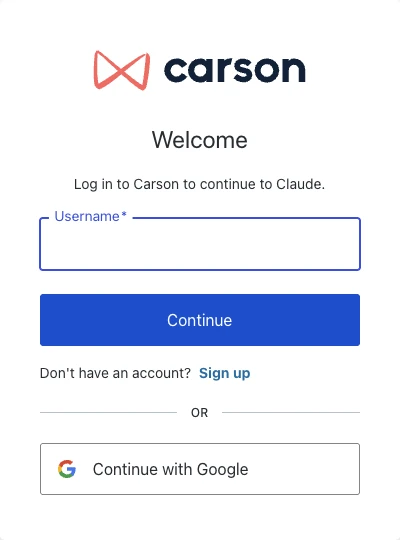
Select Connect. Carson's sign-in page opens: sign in with the account you use for Carson.
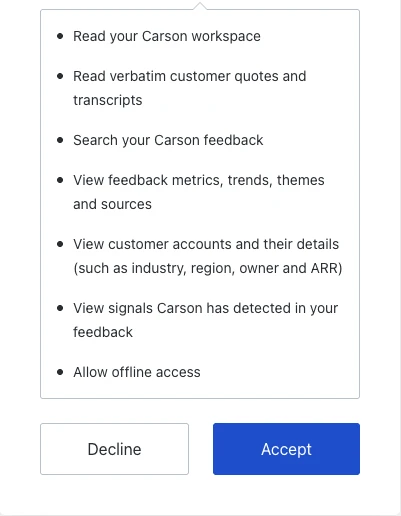
Review the permissions Carson asks for and accept. What each one means is listed on the guide's main page.
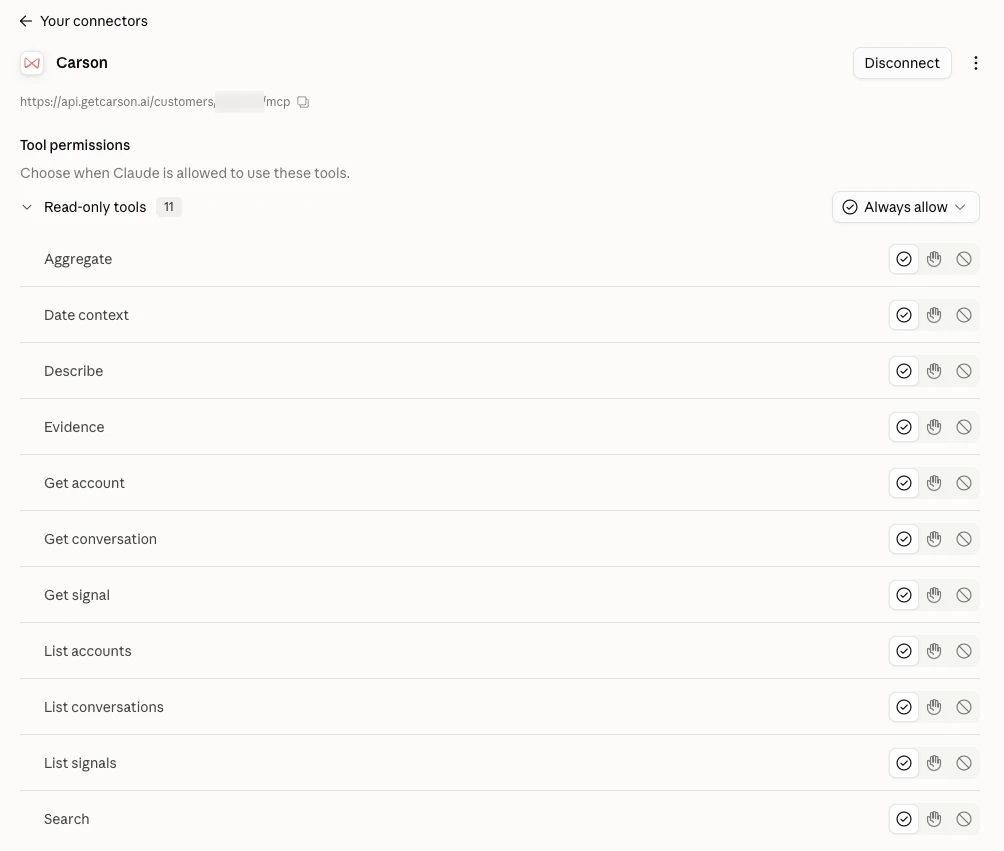
Carson's read-only tools are now listed under Customize, then Connectors, then Carson. In a chat, the + menu's Connectors list turns Carson on or off, and Add from Carson there holds Carson's ready-made prompts.
Ask your first question
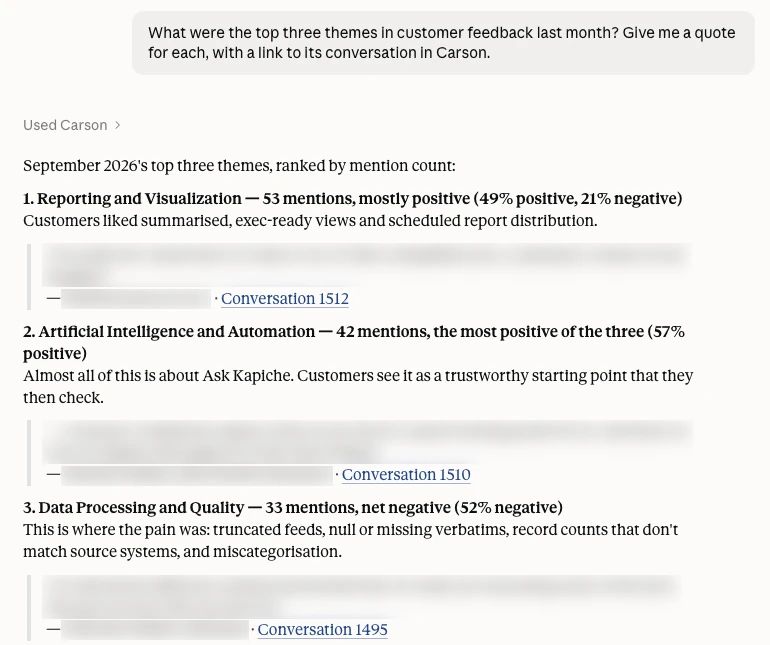
"What were the top three themes in customer feedback last month? Give me a quote for each, with a link to its conversation in Carson."
The assistant looks up last month in your workspace's timezone, counts mentions by theme, and pulls a quote for each theme. Each quote names the account it came from and links to the conversation in Carson, where a member can read the whole thing.
Also see what each permission means, what you can ask, or what to do if it does not connect.