Docs menu
Get an Intercom access token for Carson
Steps checked and screenshots taken 2026-09-24 in the Intercom web app. Menus may have moved since.
Before you start
You need to be able to open your Intercom workspace's settings and its Developer Hub. These steps were checked with an Intercom admin account; if you cannot see Developer Hub, ask an Intercom admin.
Intercom gives the key to an app, not to a person. You create a small private app for Carson, and its access token is what Carson needs.
Steps
In Intercom, select the gear icon at the bottom of the left bar to open Settings.
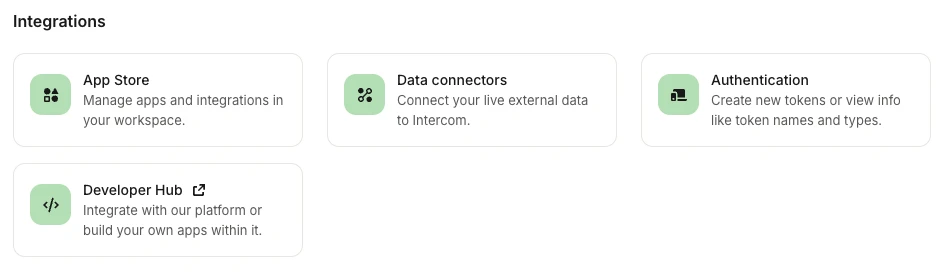
On the Settings home page, scroll to Integrations and select Developer Hub. It opens in a new tab. The Authentication card next to it is a different page: use Developer Hub.
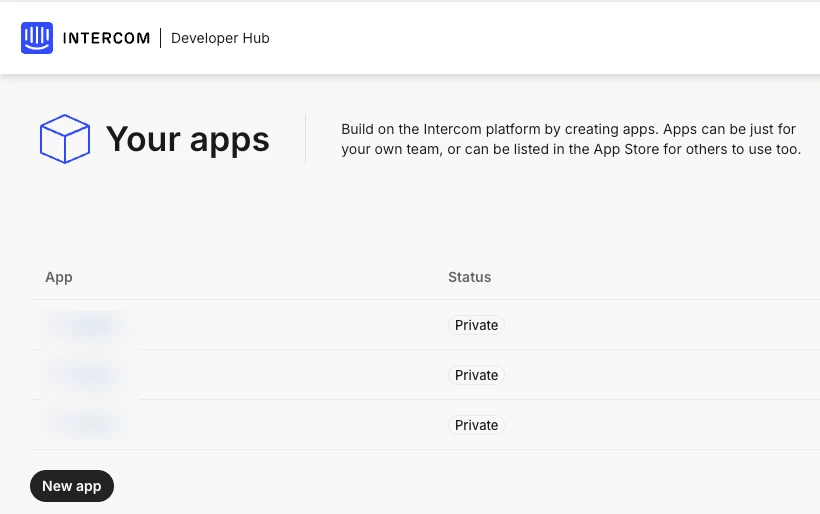
On Your apps, select New app.
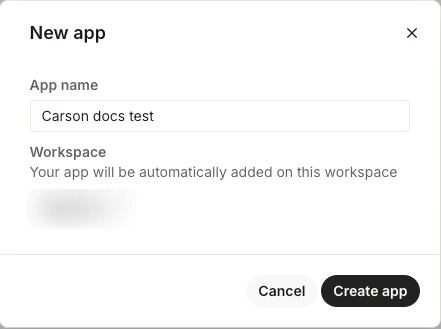
Give the app a name you will recognise, such as Carson, and select Create app. Intercom adds it to the workspace you are signed in to.
The app opens on its Authentication page. Under Access token, select the copy icon next to the hidden token.

In Carson, open Settings, choose the Integrations tab, and select Use API key on the Intercom card (it reads Re-enter API key if Carson needs the key again). If you are still setting up Carson, the Connect step opens the same form. Paste the token into Access Token.
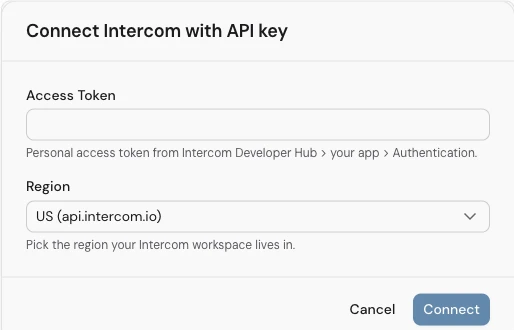
Choose your region (see below) and select Connect.
Which region to choose
Carson asks whether your Intercom workspace is hosted in the US, the EU or Australia. Intercom does not show this in its settings, but the address bar does while you are signed in: app.intercom.com is the US, app.eu.intercom.com is the EU, and app.au.intercom.com is Australia (AU in Carson's menu). Pick the matching region in Carson.
Once it connects
Once the token works, the Intercom card in Carson's Integrations tab shows Intercom as connected.
Carson only uses the token to check the connection and read your conversations. It never changes or deletes anything in Intercom. The app's Permissions list, under Edit on the Authentication page, shows everything the token allows.
Troubleshooting
You found a token under Settings, then Authentication, or under your personal API tokens
Those are different tokens. Carson needs the one on your app's own Authentication page in Developer Hub.
Carson says the token did not work
Check that you copied the whole token with no spaces at either end, and that the region matches the address you use for Intercom.
You want to disconnect Carson from Intercom
Disconnect it in Carson's Integrations tab. To revoke the token as well, delete the app in Developer Hub: Intercom revokes every token the app issued.