Docs menu
Get a Gong API key for Carson
Steps checked and screenshots taken 2026-09-24 in the Gong web app. Menus may have moved since.
Before you start
You need the tech admin role in Gong. The API page is only shown to tech admins, so if you cannot find it, ask your Gong admin to create the key or to follow this guide with you.
Gong shows the key's Secret once, when you create it. Open Carson in another tab before you start, so you can paste it straight in.
Steps
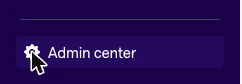
In Gong, point at the left sidebar and select Admin center at the bottom. Until you point at it, it is a gear icon with no label.
Admin center opens on the Settings tab. In the Ecosystem card, select API.
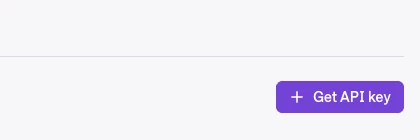
The API page opens on its API Keys tab. Select Get API key at the top right.
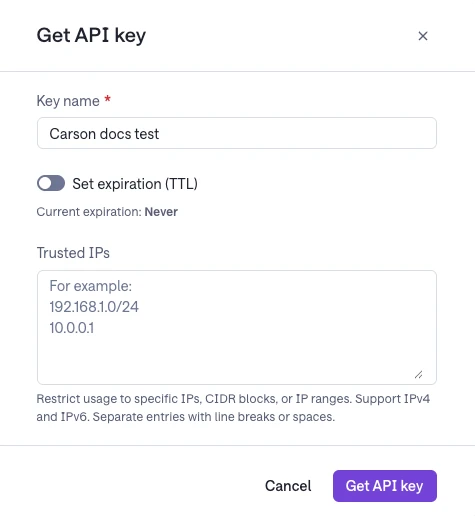
Give the key a name that says what it is for, such as Carson, and select Get API key. Leave Trusted IPs empty: Carson connects from its own servers, and a list that leaves them out stops Carson reading Gong. If you set an expiration, Carson stops syncing when the key expires and you will need a new one.
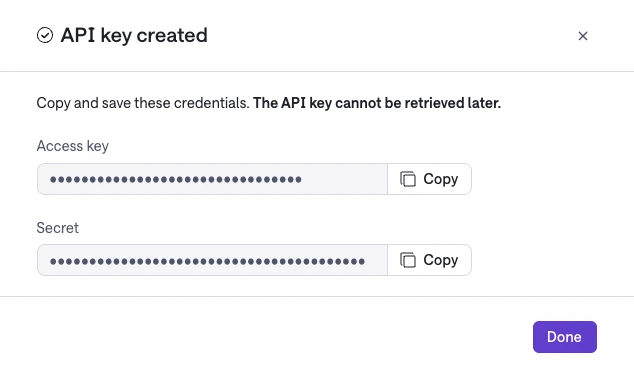
Gong shows the new key as two values, Access key and Secret, each with a Copy button. Copy both now. You can see the Access key again later, but not the Secret. Then select Done.
In Carson, open Settings, choose the Integrations tab, and select Use API key on the Gong card (it reads Re-enter API key if Carson needs the key again). If you are still setting up Carson, the Connect step opens the same form. Paste Gong's Access key into Access Key and its Secret into Access Key Secret.
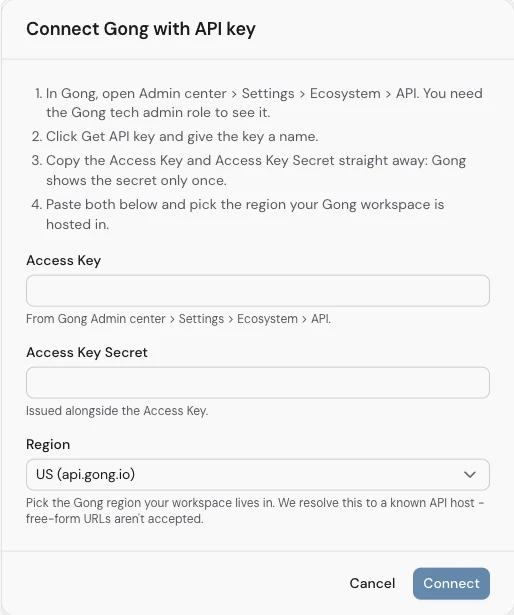
Choose your region (see below) and select Connect.
Which region to choose
Carson asks whether your Gong account is hosted in the US or the EU. To check, open Admin center in Gong, then Company Profile under General settings, and look at Data residency. Pick the matching region in Carson.

Once it connects
Once the key works, the Gong card in Carson's Integrations tab shows Gong as connected.
Troubleshooting
You cannot find API in Admin center
Your Gong account does not have the tech admin role. Ask your Gong admin to give you the role, or to create the key for you.
You closed the dialog before copying the Secret
Gong cannot show it again. On the API page, open the key's menu, choose Edit, then Delete API key, and create a new key. Only do this for a key Carson is not already using.
Carson says the key did not work
Check that you pasted the Access key and the Secret into the right boxes, with no spaces at either end, and that the region matches Data residency in Gong.